我是如何使用 Claude Code 的|配置篇
写在前面
以下所有的配置均是基于 Claude Code CLI,当前版本为 v2.1.89
我的 Claude Code 配置全景
从 API 供应商管理到远程 Telegram 交互,10 项配置构建高效 AI 编程工作流
核心配置
akm — 多供应商 API Key 一键切换,支持 Anthropic、TAL、Kimi、DeepSeek、Qwen 等 6 个供应商
Permissions — deny → ask → allow 三级权限评估,精细控制工具调用安全边界
Hooks — Stop / Notification 生命周期钩子,任务完成语音播报 + 提示音
10
配置项
开发体验
Vim 模式 · hjkl 导航 · 多行 prompt 编辑
Aliases · cc / ccc 快捷命令
远程交互
Telegram Channel
通过手机远程下达指令、查看进度、审批操作
外观与标识
Language · 中文回复
Theme · Light mode · 6 种主题可选
StatusLine · 自定义状态栏 · 模型 / Git / 上下文窗口
Attribution · 禁用 Co-authored-by 署名
配置 akm
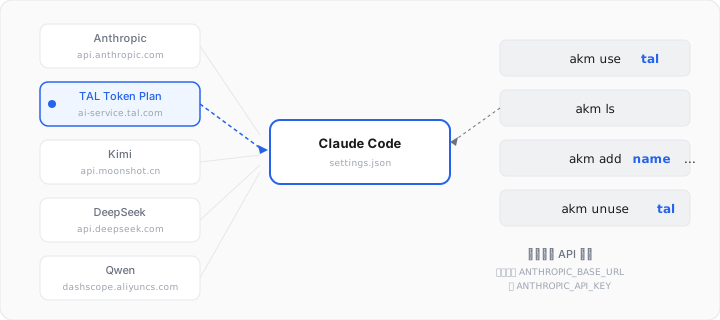
在实际工作中,我拥有多套 Anthropic API 的接入方式,比如:官方订阅、集团的 Token Plan、Kimi、GLM、Minimax、Qwen、DeepSeek 等。每次手动去修改 ~/.claude/settings.json 里的环境变量既繁琐又容易出错。为了解决这个问题,我开发了 akm(Anthropic Key Management),一个轻量级的 CLI 工具,专门用来在不同的 API 代理配置之间一键切换。
添加集团 Token Plan 配置:
# 基本用法:名称 + baseURL + API Key
akm add tal http://ai-service.tal.com/coding sk-xxxx
列出所有供应商:
# 列出所有配置,标记为 * 的是当前正在使用的
akm ls
  ds ------------- https://api.deepseek.com/anthropic
  glm ------------ https://open.bigmodel.cn/api/anthropic
  kimi ----------- https://api.moonshot.cn/anthropic
  minimax -------- https://api.minimaxi.com/anthropic
  qwen ----------- https://dashscope.aliyuncs.com/api/v2/apps/claude-code-proxy
* tal ------------ http://ai-service.tal.com/coding
切换:
akm use tal   # 使用 tal 配置
akm unuse tal # 停止使用 tal 配置,回到默认(订阅模式)
设置语言
Claude Code 默认以英文回复,但你可以通过 /config 命令进入设置界面,在其中将 Language 设置为 Chinese,之后 Claude 就会默认使用中文进行交互。
    Auto-compact                              false
    Show tips                                 true
    Reduce motion                             false
    Thinking mode                             true
    Fast mode (Opus 4.6 only)                 false
    Rewind code (checkpoints)                 true
    Verbose output                            false
    Terminal progress bar                     true
    Show turn duration                        true
    Default permission mode                   Bypass Permissions
    Respect .gitignore in file picker         true
    Always copy full response (skip /copy     false
  picker)
    Auto-update channel                       latest
    Theme                                     Light mode
    Notifications                             Auto
    Output style                              default
  ❯ Language                                  Chinese
    Editor mode                               vim
    Show PR status footer                     true
    Model                                     opus[1m]
  ↓ 4 more below

  Space to change · Enter to save · / to search · Esc to cancel
这个设置对应的是 ~/.claude/settings.json 中的 language 字段:
{
  "language": "Chinese"
}
需要注意的是,这个设置影响的是 Claude Code 的回复语言偏好,而非界面语言。Claude Code 的 UI 元素(如命令提示、菜单等)仍然是英文的。
Vim 模式
对于习惯了 Vim 键位的开发者来说,Claude Code 内置的 Vim 模式是一个极大的效率提升。在输入区域中,你可以使用 hjkl 导航、i/a 进入插入模式、dd 删除行、yy 复制行等常见 Vim 操作,这在编写较长的多行 prompt 时尤其有用。
启用方式非常简单,在 Claude Code 中输入:
/vim
或者通过 /config 命令在设置界面中开启。
Vim 模式的状态存储在 ~/.claude.json 的 editorMode 字段中,会跨会话持久化。不过需要注意的是,这个文件是 Claude Code 主动管理的运行时配置文件(同时包含 OAuth 缓存、项目状态等),并不适合作为 dotfile 进行 symlink 管理。如果你在多台机器间同步配置,Vim 模式需要在每台机器上单独开启。
主题
Claude Code 提供了 6 种主题供选择,可以通过 /theme 命令来切换,也可以通过 /config 然后选择 Theme 来切换,可选的主题包括:
  1. Dark mode
❯ 2. Light mode ✔
  3. Dark mode (colorblind-friendly)
  4. Light mode (colorblind-friendly)
  5. Dark mode (ANSI colors only)
  6. Light mode (ANSI colors only)
Claude Code 的主题只控制其自身的输出配色,不会影响终端本身的主题。如果你希望两者视觉上协调一致,需要在终端应用中单独调整配色方案来匹配。我终端使用的是亮色主题,所以 Claude Code 也选择了 Light mode。
禁用 Co-authored-by 署名
默认情况下,Claude Code 会在 git commit 和 PR 描述中添加 Co-Authored-By: Claude Opus 4.6 <noreply@anthropic.com> 的署名。这里我不希望在提交历史中包含这个消息,可以通过下面的方法将其关闭。
最直接的方式是在 ~/.claude/settings.json 中配置 attribution 字段:
{
  "attribution": {
    "commit": "",
    "pr": ""
  }
}
将 commit 和 pr 都设为空字符串即可完全隐藏署名。
你也可以自定义署名内容,比如:
{
  "attribution": {
    "commit": "Generated with Claude Code",
    "pr": ""
  }
}
旧版本中使用的 includeCoAuthoredBy: false 写法仍然有效,但已被标记为 deprecated,建议迁移到 attribution 配置。
设置别名
为常用的 Claude Code 命令设置 shell 别名可以显著减少输入量,我装了 oh-my-zsh,所以我会在 .oh-my-zsh/custom/alias.zsh 中添加:
alias cc="claude"
alias ccc="claude --channels plugin:telegram@claude-plugins-official"
你也可以在你的 ~/.zshrc 中添加上述别名。
第一个别名 cc 很直观,把 claude 缩短为两个字符。
第二个别名 ccc 启动 Claude Code 的同时激活 Telegram Channel 插件,这样我就可以通过 Telegram 远程与正在运行的 Claude Code 会话进行交互。关于 Channels 的详细介绍见下文。
Channels 插件
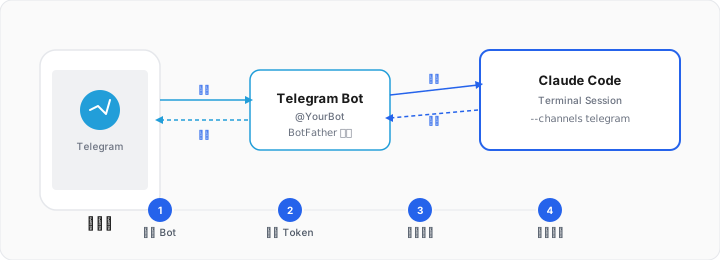
Channels 是 Claude Code 在 2026 年 3 月推出的一项研究预览功能,它允许你通过 Telegram、Discord 或 iMessage 等外部消息平台向正在运行的 Claude Code 会话发送消息。这意味着你不再需要守在终端前,可以在手机上通过 Telegram 给 Claude 下达指令、查看进度、甚至审批操作。
前置条件:
- Claude Code v2.1.80 或更高版本
- 使用 claude.ai 账号登录(Console / API Key 认证暂不支持)
- Pro 和 Max 用户可直接使用;Team 和 Enterprise 计划需要管理员启用
channelsEnabled设置
配置 Telegram Channel
step#1: 在 Telegram 上搜索 @BotFather,输入 /newbot,然后输入你给 bot 起的用户名,不能和别人的重复,必须以 bot 结尾,然后它会给你返回一个 token,类似 123456789:AAHfiqksKZ8...
step#2: 在 Claude Code 上安装 Telegram Plugin 然后再 reload 一下插件
/plugin install telegram@claude-plugins-official # 安装插件
/reload-plugins # 重新加载插件
step#3: 把刚才拿到的 Telegram Token 给插件,在 Claude Code 里输入
/telegram:configure 123456789:AAHfiqksKZ8...
或者直接跟 Claude Code 对话,让它帮你配置。Token 会被保存到 ~/.claude/channels/telegram/.env 文件中。
step#4: 重启 Claude Code,命令:
claude --channels plugin:telegram@claude-plugins-official

# 使用之前配置的 alias
ccc
这时就可以在 Claude Code 中使用 /telegram 了。
step#5: 和 Telegram 机器人配对:私聊你的机器人,它会回复你一个 6 位数的 pairing code。在 Claude Code 中输入 /telegram:access pair,进行配对。配对成功后,Claude Code 会给你发一条消息。
step#6: 给 Telegram 机器人加锁:使用 /telegram:access policy allowlist 让它仅能跟你配对的 Telegram 账户对话,其他人不能。
配置 Permissions
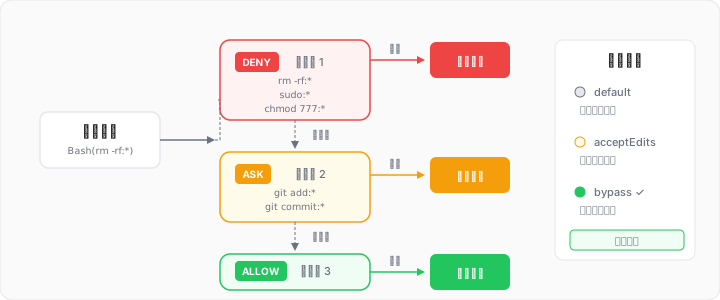
Claude Code 的权限系统决定了它能对你的文件系统和工具做什么、不能做什么。合理的权限配置既能减少反复确认的烦躁感,又能守住安全底线。
权限规则语法
权限规则的格式是 Tool 或 Tool(specifier),评估顺序为:deny → ask → allow,第一条匹配的规则生效。
我的配置
{
  "permissions": {
    "allow": [
      "Task",
      "Glob",
      "Grep",
      "LS",
      "Read",
      "Edit",
      "MultiEdit",
      "Write",
      "NotebookRead",
      "NotebookEdit",
      "WebFetch",
      "TodoWrite",
      "Bash(node:*)",
      "Bash(npm:*)",
      "Bash(npx:*)",
      "Bash(pnpm:*)",
      "Bash(cat:*)",
      "Bash(ls:*)",
      "Bash(find:*)",
      "Bash(grep:*)",
      "Bash(rg:*)",
      "Bash(mkdir:*)",
      "Bash(cp:*)",
      "Bash(mv:*)",
      "Bash(echo:*)",
      "Bash(head:*)",
      "Bash(tail:*)",
      "Bash(sed:*)",
      "Bash(touch:*)",
      "Bash(chmod:*)",
      "Bash(cd:*)",
      "Bash(pwd:*)",
      "Bash(wc:*)",
      "Bash(sort:*)",
      "Bash(diff:*)",
      "Bash(git status:*)",
      "Bash(git log:*)",
      "Bash(git diff:*)",
      "Bash(git branch:*)",
      "Bash(git stash:*)",
      "Bash(git show:*)"
    ],
    "deny": ["Bash(rm -rf:*)", "Bash(sudo:*)", "Bash(chmod 777:*)"],
    "ask": [
      "Bash(git add:*)",
      "Bash(git commit:*)",
      "Bash(git push:*)",
      "Bash(git reset:*)",
      "Bash(git rebase:*)",
      "Bash(git checkout:*)"
    ],
    "defaultMode": "bypassPermissions"
  }
}
权限模式
Claude Code 还支持通过 defaultMode 设置默认的权限模式:
- default — 每次工具调用都需要确认
- acceptEdits — 自动批准文件编辑,其他操作仍需确认
- bypassPermissions — 跳过所有权限检查(对应
--dangerously-skip-permissions标志,慎用)
对于日常开发,我之前一直在全局设置的 default,在项目级的设置里会配置 acceptEdits ,它让 Claude 自由编辑代码,但执行 shell 命令时仍然不断确认。现在我直接把 defaultMode 设置成了 bypassPermissions,跑任务时基本不需要我确认了。
Hooks 配置
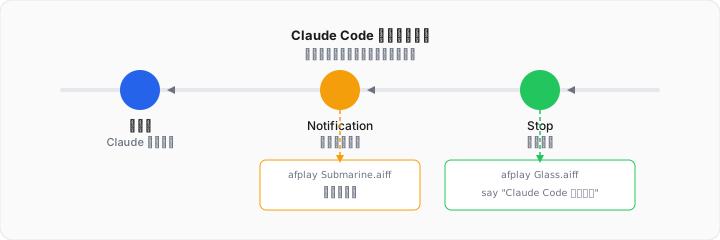
我配置了 Claude Code 的两个生命周期钩子(Hooks),用于在特定事件发生时自动执行系统命令。配置如下:
{
  "hooks": {
    "Stop": [
      {
        "matcher": "",
        "hooks": [
          {
            "type": "command",
            "command": "afplay /System/Library/Sounds/Glass.aiff && say \"Claude Code 任务完成\""
          }
        ]
      }
    ],
    "Notification": [
      {
        "matcher": "",
        "hooks": [
          {
            "type": "command",
            "command": "afplay /System/Library/Sounds/Submarine.aiff"
          }
        ]
      }
    ]
  }
}
Stop 钩子:任务完成时,播放提示音 + 语音播报。
- 触发时机:当 Claude Code 完成一轮回复(停止生成)时触发
matcher: "":空字符串表示匹配所有情况,即无论什么任务完成都会触发- 执行内容:
afplay /System/Library/Sounds/Glass.aiff— 播放 macOS 系统自带的 "Glass" 提示音say "Claude Code 任务完成"— 使用 macOS 的 TTS(文字转语音)朗读"Claude Code 任务完成"
Notification 钩子:有通知时播放另一种提示音,提醒我回来看一下。
- 触发时机:当 Claude Code 发送通知(例如需要用户确认权限、等待输入等)时触发
- 执行内容:播放 macOS 系统自带的 "Submarine" 提示音。
StatusLine
Claude Code 支持自定义 status line,官方文档请参考:自定义 status line
我也写了一个我自己的 status line,它是一个单行的 status line,包含模型名称、当前的工作目录、git 状态以及上下文窗口。

只需要在 ~/.claude/settings.json 中配置 statusLine 字段:
{
  "statusLine": {
    "type": "command",
    "command": "bunx @botaoxyz/claude-statusline"
  }
}
然后重启 Claude Code 即可。
如果你的 statusline 没显示图标,请安装 nerd-fonts。